A service-business quote form should collect what your team needs to make the next useful response. That usually means a way to reply, enough information to recognise the request and any detail that genuinely determines who can handle it. Choose the fields around that response before deciding how the form should look.
A request for a price can begin very different conversations. A cleaning company may need to establish the type of property. A garage may need to clarify the work before discussing an estimate. The form should make that first exchange easier without demanding answers a customer cannot reasonably give.
What will your team do with the request?
Write the first action in plain language: “Our service adviser will read the description, confirm whether we handle the work and contact the customer about the next step.” This is specific enough to guide field choices. “Collect a lead” is too broad to tell you whether a vehicle identification number belongs on the first screen.
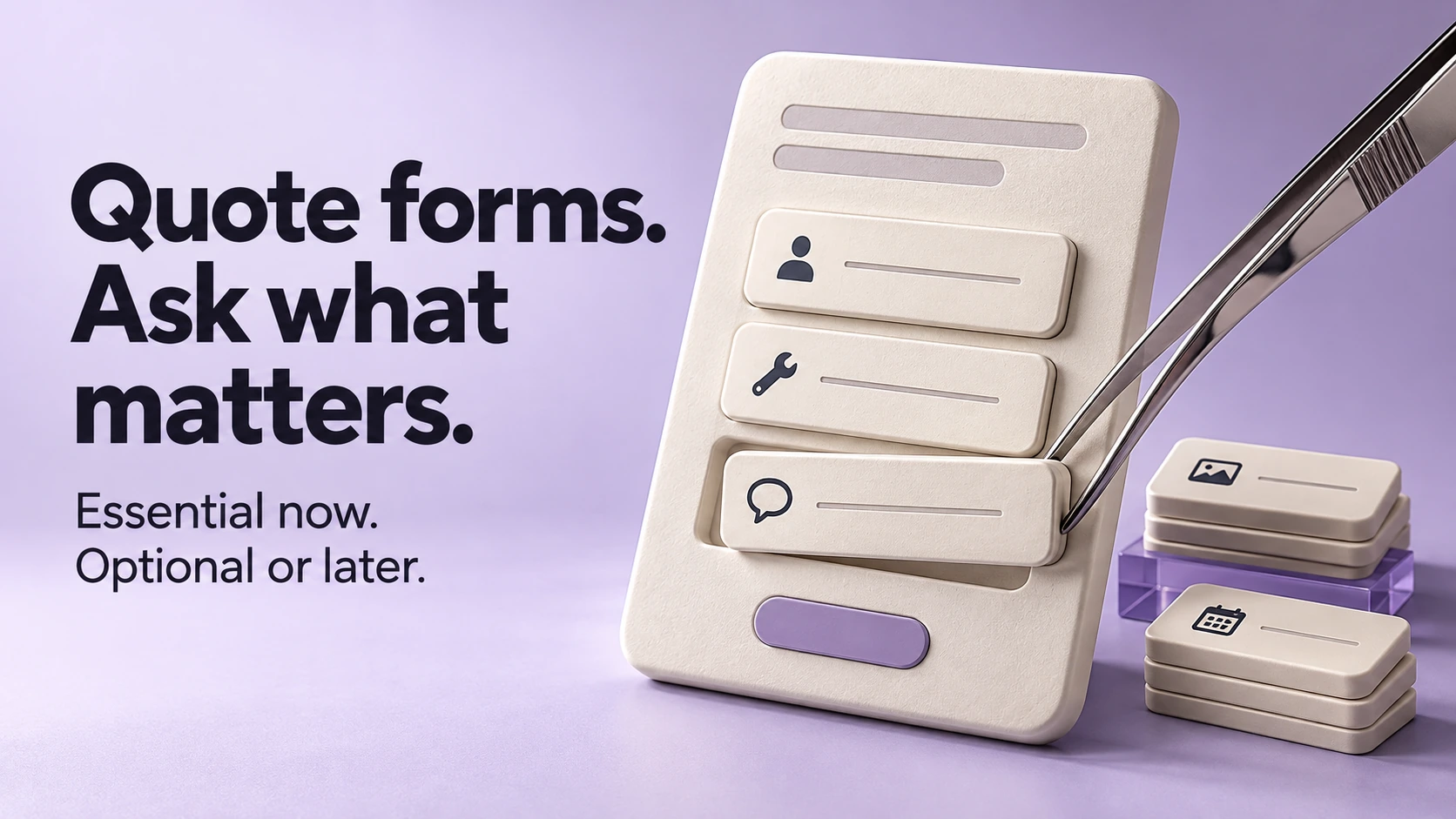
Ask the person who will reply to review the proposed fields. For every required answer, finish this sentence: “Without this, we cannot…” If the explanation is only that the information might be useful later, make it optional or collect it after contact.
The W3C Forms Tutorial recommends asking only for information needed to complete the process. It does not prescribe a universally ideal field count. A longer form can be justified when each answer serves the agreed task; a short form can still ask the wrong questions.
A field decision sheet for a fictional garage
In this hypothetical example, the garage reviews requests before discussing an estimate or arranging a visit. It has agreed to reply by the customer's choice of phone or email. These are design assumptions for the example, not claims about a ZXP client or instructions for assessing a vehicle.
| Field | When to ask | Reason and wording |
|---|---|---|
| Preferred contact method and matching phone number or email | Needed to route/respond now | Ask how to reply, then require the corresponding contact detail. Do not require both unless the workflow genuinely needs both. |
| Description of the request | Needed to route/respond now | Use “What would you like us to look at?” Let the customer describe the situation in ordinary language. |
| Service category | Optional useful context | Use a small set of accurate service labels with “Not sure”. The description can still guide the response. |
| Name | Optional useful context in this example | “What should we call you?” helps personalise a reply, but the garage can begin responding without it. |
| Vehicle make, model and year | Optional useful context in this example | Ask for details the customer knows. Let them continue when some are unknown. |
| Photos | Optional useful context | Invite a relevant photo if it helps explain visible damage or the request. Keep a no-photo route. |
| Full street address | Ask after first contact, if needed | This example does not offer a location-dependent service at the enquiry stage. A mobile service would need to revisit that decision. |
| VIN, documents and additional job details | Ask after first contact, if needed | Let the adviser explain any later need and the agreed way to provide the information. Do not request documents by default. |
Your sheet may look different. If a service is available only within a defined area, a town or postal/ZIP code might be necessary before the team can respond usefully. If branches handle different work, the selected branch may determine routing. Write down that reason instead of copying another company's form.
Make uncertainty an acceptable answer
A customer should not have to diagnose a problem to ask about your service. For the fictional garage, a suitable prompt is: “Tell us what you noticed or what work you want to discuss. You do not need to know the technical name.” This gives a hesitant visitor a place to start without steering them towards a diagnosis.
For vehicle details, use wording such as “Make, model and year, if known. Add what you know; you can leave the rest blank.” If the team genuinely needs a missing detail to continue, explain why and provide another contact route. Do not force a guess simply to satisfy a required field.
Suppose a customer wants to ask about a scraped door. They choose email, describe the visible scrape, enter the make they know and leave the model blank. A failed photo upload should not erase that description or prevent the optional-photo request from continuing. The adviser can read the request and ask for more context through the agreed process.
Give photo uploads a usable fallback
Decide whether your team will actually use photos at this stage. If they are useful, label them optional and explain what sort of image helps. Put the supported file types and actual size limit beside the control once the developer has confirmed them. Avoid asking for documents or unrelated personal information in the same field.
Write the failure state as carefully as the invitation. For example: “Your photo did not upload. Try an accepted file, or remove the photo and send your request without it.” Show the applicable file requirements alongside that message. The form should keep the other answers so the person can choose how to continue.
That wording describes a design requirement, so test it in the finished form. An upload error should also make clear whether the request itself has been submitted. Otherwise a customer may leave believing the team has received something that is still sitting on the screen.
Check the filled-in form on a phone
Start with labels that remain understandable while someone is typing. W3C's guidance on labelling controls explains that labels should identify the field and be associated with it in the code. That association also supports assistive technology and makes the label a usable clickable target.
Read the form with the keyboard open on a phone. Can you still see the question, its instructions and the action button? Enter a realistic description, change the preferred contact method and try the optional photo route. Check that changing one answer does not unexpectedly discard another.
Deliberately leave out a required answer and enter a malformed email address. The error should name the affected field and explain the correction. W3C's notification guidance recommends concise, clear feedback and errors that help people recover. Ask the developer to check keyboard use and screen-reader announcements as well. An owner's phone check is useful evidence, but it is not a complete accessibility assessment.
Say what was received and what happens next
Match the button and confirmation to the service you actually provide. For this example, “Send service request” is clearer than a button that implies an instant price or confirmed appointment. The page can explain before submission that the adviser will review the information and discuss the next step.
After a successful submission, suitable example wording is: “We have received your service request. Our adviser will contact you using your selected method. An appointment has not been booked.” Add a response timeframe only if the business can support it, and make sure the wording matches the system's real behaviour.
Finally, submit an arranged, clearly labelled test request and have the receiving team locate it. Confirm that the chosen reply method and useful details arrive together. If the form needs rebuilding, bring your field decision sheet to ZXP's website services team. It tells the designer what each question must accomplish.
Sources & references
- 01Forms Tutorial
W3C Web Accessibility Initiative
- 02Labeling Controls
W3C Web Accessibility Initiative
- 03User Notification
W3C Web Accessibility Initiative
A perspective from the ZXP team.
Designed to help you ask better questions and take a clearer next step.